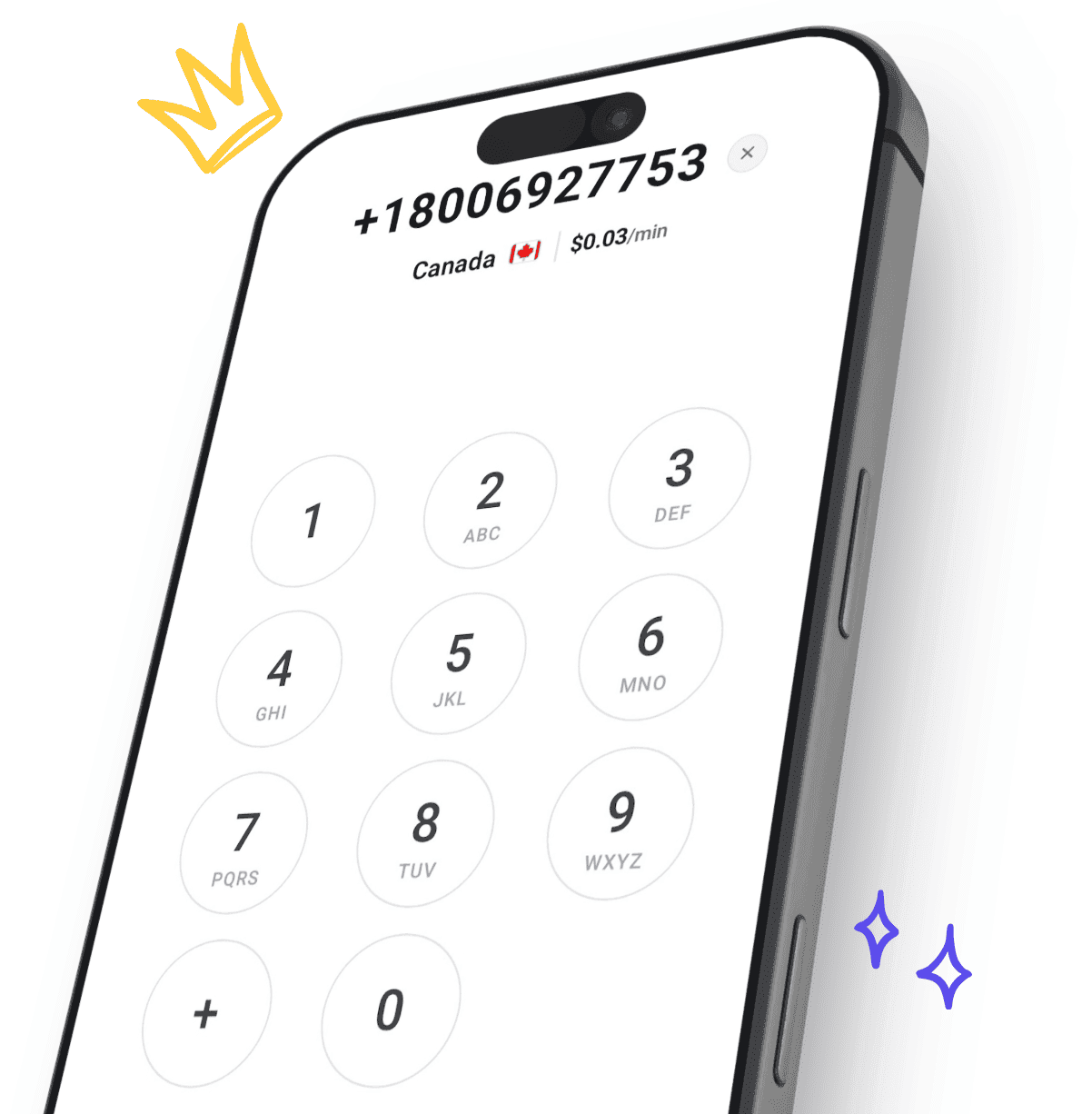
Call From Your Laptop - No Phone Needed
Your laptop already has a microphone, speakers, and internet - that is a phone. CallTuv runs in the browser and calls real landline and mobile numbers in 200+ destinations, while the other person answers a completely normal call.
Ideal when your phone is dead, lost, or in another country - or when you simply work faster with a keyboard and headset.
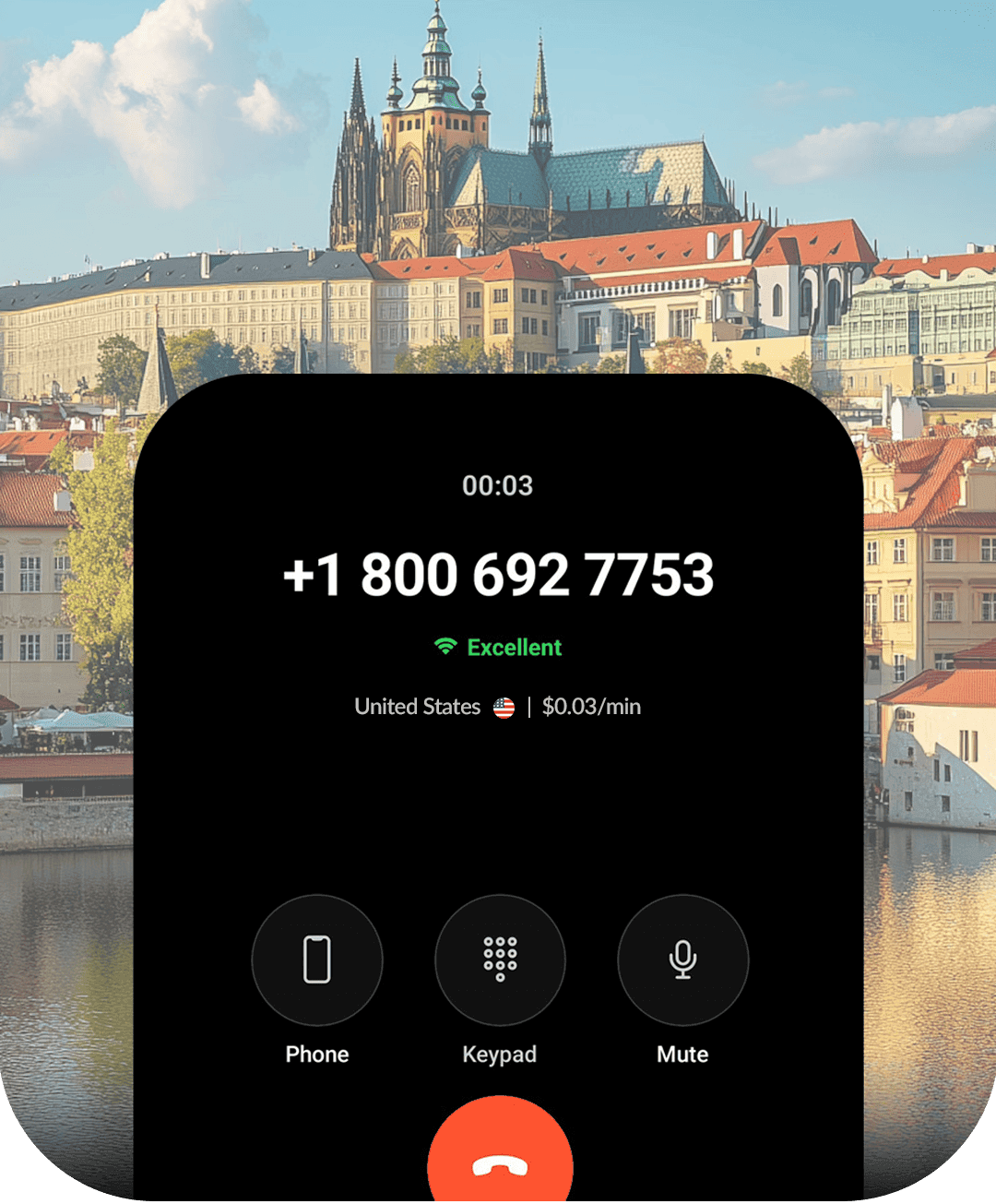
Someone called United States
1 minute ago
Quick answer
Yes - your laptop can call any phone number
The short version: open CallTuv in your browser, type the phone number with its country code, allow microphone access, and press call. The other person answers a normal call on their phone - no phone, SIM card, or software needed on your side.
Calls reach the ordinary telephone network, so any landline or mobile in the world can pick up. The rest of this guide covers the alternatives, how to choose between them, and how to set up each operating system for the best audio.
How it works
CallTuv runs in your laptop browser, captures your voice, and connects the call to the regular phone network over the internet.
What you need
A laptop with a working microphone, a modern browser, and an internet connection. A headset helps but is optional.
Who you can call
Any landline or mobile number in 200+ destinations. Recipients answer normally - they never know you called from a laptop.
Not for
Emergency calls or receiving inbound calls. CallTuv is built for outbound calling from your browser.
How it works
From laptop keyboard to their phone ringing
Laptop calling uses the same internet voice technology behind modern phone systems: the browser captures your microphone, sends the audio over an encrypted connection, and CallTuv hands the call to carrier networks that reach every normal phone number.
That last step is what separates this from Zoom, Meet, or FaceTime. Those connect app to app - both sides need the same software and a meeting link. A browser call to a phone number needs nothing from the other person.
It is the same underlying flow as our web phone dialer, tuned here for one job: making your laptop the only device you need.
Four steps, no phone involved
Open the browser and sign in
Chrome, Safari, Edge, or Firefox on any operating system. There is no app to download and nothing for IT to approve.
Type the number, see the rate
Enter the full number with country code. The exact per-minute price appears before you commit to the call.
Allow microphone access
The browser asks once per site. If you use a headset, pick it as the input device for the clearest audio.
Talk - they answer a normal call
CallTuv bridges your browser audio to the phone network. On the other end it is just a regular incoming call.
The full picture
Every way to call from a laptop, ranked by reach
There are four real options, and they solve different problems. The right one depends on a single question: does the other person need to be reachable at a phone number, or inside an app?
Browser calling to real numbers
Sign in to CallTuv in the browser and dial any landline or mobile.
Good for
Calling anyone - businesses, family, government offices - regardless of what apps they use.
The catch
Outbound only, and per-minute rates apply (from $0.03/min).
Meeting apps (Zoom, Meet, Teams)
Send a link, both sides join the same meeting.
Good for
Scheduled conversations with people who accept a link and have good internet.
The catch
Useless for calling a phone number. The other person must show up in the app.
Google Voice
Google’s calling service, used from the browser or app.
Good for
US-based users who want a free US number for domestic calling.
The catch
Limited availability outside the US and setup usually requires an existing US phone number.
Messaging apps on desktop (WhatsApp, Telegram)
Use the desktop client of an app both of you already use.
Good for
Free calls to contacts who are active on the same app.
The catch
Requires a phone-verified account, and only reaches people in your app contacts - not arbitrary numbers.
Phone mirroring (Windows Phone Link, Apple Continuity)
The laptop remote-controls your phone’s cellular calls.
Good for
Answering your own mobile number without picking up the handset.
The catch
The phone must be nearby, powered, and paired - the laptop is a remote, not a phone.
This page focuses on option one, because it is the only method that reaches any phone number worldwide with nothing required on the other end. For the browser-dialer product details, see the web phone dialer page; if you are weighing Google Voice specifically, our Google Voice comparison covers it in depth.
Decision checklist
Five questions to ask before choosing a computer calling method
Run any option - including ours - through these five questions and the right choice for your situation becomes obvious.
Does it call real phone numbers?
Meeting and messaging apps only reach people inside the same app. If you need to call a bank, a business, a landline, or anyone not on your app, the method must connect to the regular phone network.
Does it need your phone nearby?
Phone Link and Apple Continuity are remotes for your phone, not replacements. If your phone is dead, lost, or in another country, they stop working - browser calling does not.
Does the other person need anything?
The best answer is nothing: no app, no account, no link. If your method requires the other side to install or join something, it will fail with businesses and less technical contacts.
Are the costs visible before you dial?
Per-minute pricing shown up front beats bundled plans you cannot audit. CallTuv shows the exact rate for the destination before every call.
Does it work on your operating system?
Browser-based calling is OS-agnostic - Windows, macOS, ChromeOS, and Linux all work. Phone mirroring is the opposite: Phone Link is Windows+Android, Continuity is Mac+iPhone.
Why call from a laptop
When the laptop is the better phone
Calling from a computer is not just a backup plan - for desk work it is often the upgrade.
Phone dead, lost, or elsewhere
A drained battery or a phone left at home no longer blocks an important call. If your laptop is online, you can dial.
Faster with a keyboard
Paste numbers instead of typing them on a touchscreen, take notes while talking, and keep your CRM or email in view.
Better audio on long calls
A laptop with a headset beats a warm phone against your ear. HD voice and a comfortable mic make hour-long calls easy.
Click-to-call your workflow
With the Chrome extension, numbers on websites, CRMs, and emails become one-click calls from the machine you already work on.
Setup by operating system
Windows, Mac, or Chromebook - the two-minute setup
The call itself works identically everywhere because it runs in the browser. The only OS-specific part is microphone permissions, and here is exactly where each system hides them.
Windows laptops
- If the browser cannot see your microphone, open Settings > Privacy & security > Microphone and enable "Let apps access your microphone" plus access for your browser.
- Pick the right input under Settings > System > Sound if you have both a built-in mic and a headset connected.
- Chrome and Edge both work; whichever you use, allow the mic prompt for calltuv.com the first time.
MacBooks and Macs
- macOS gates microphone access per app: System Settings > Privacy & Security > Microphone must show your browser enabled.
- Safari and Chrome both support browser calling; Safari asks for mic permission per site the first time you dial.
- If you use AirPods, check the input device in System Settings > Sound - macOS sometimes keeps the built-in mic active, which is usually the better choice for quality anyway.
Chromebooks
- ChromeOS is the simplest case: the browser is the operating system, so there is nothing to install and no separate app permission layer.
- Click the lock icon in the address bar on calltuv.com to manage the microphone permission directly.
- Even budget Chromebooks handle calls easily - voice needs very little processing power or bandwidth.
Compare your options
Browser calling vs meeting apps vs phone mirroring
Zoom-style apps need both sides online in the same software. Phone-link tools like your OS's phone mirroring still need your phone in range. Browser calling to real numbers needs neither.
Sound your best
Laptop audio setup that makes calls sound professional
The laptop is capable of better call audio than a phone - but only if the microphone path is right. Four adjustments cover nearly everything.
Wired beats Bluetooth for your mic
When a Bluetooth headset activates its microphone, many laptops drop the whole connection to a lower-quality hands-free mode. A wired headset - or Bluetooth for listening with the laptop’s built-in mic for talking - usually sounds noticeably better to the other side.
Kill the echo before it starts
Laptop speakers plus a sensitive built-in mic is the classic echo recipe. Any headphones at all, even basic earbuds, remove the feedback path completely.
Mind what else uses the mic
If Zoom, Teams, or a recording app is holding the microphone, the browser may get silence. Close other calling apps before dialing, especially after back-to-back meetings.
Position and environment
Sit within arm’s length of the laptop, avoid typing during sentences if you use the built-in mic, and take important calls away from fans and open windows. Small changes here matter more than expensive hardware.
Joining meetings from this laptop too? The same checks apply - use our Zoom, Google Meet, and Teams mic tests before important meetings.
Call landlines and mobiles in 200+ countries.
Reach customers, relatives, and teams worldwide from one online web dialer. CallTuv lets you place reliable calls to landlines and mobile numbers across 200+ destinations without switching apps, SIMs, or carriers.


Pay-as-you-go international callingmade simple.
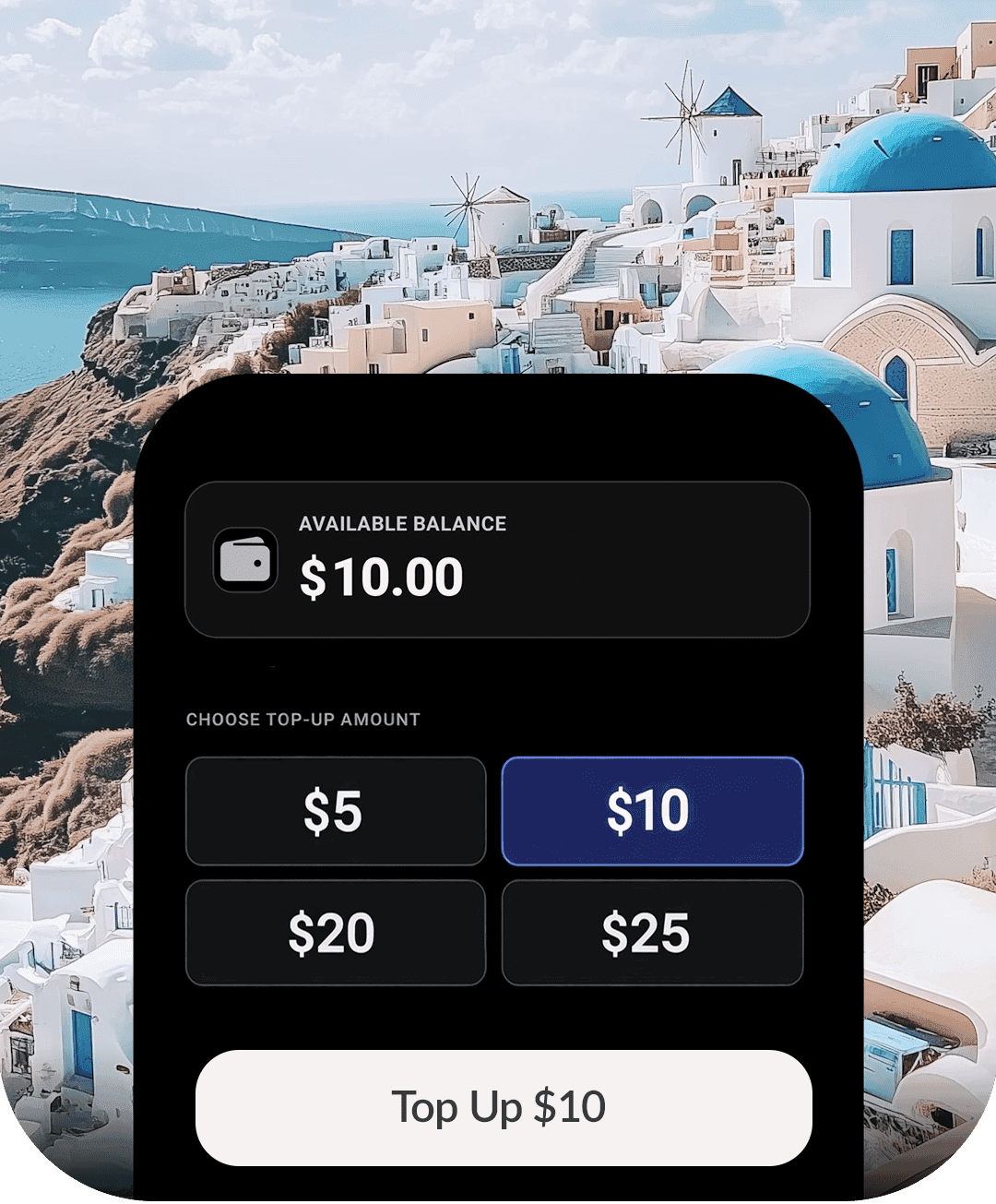
Add credits to your account and use your balance for browser calls whenever you need them. Pay only for what you use, check the rate before you connect, and keep your credit ready for the next important call.
Call internationally withyour own caller ID.
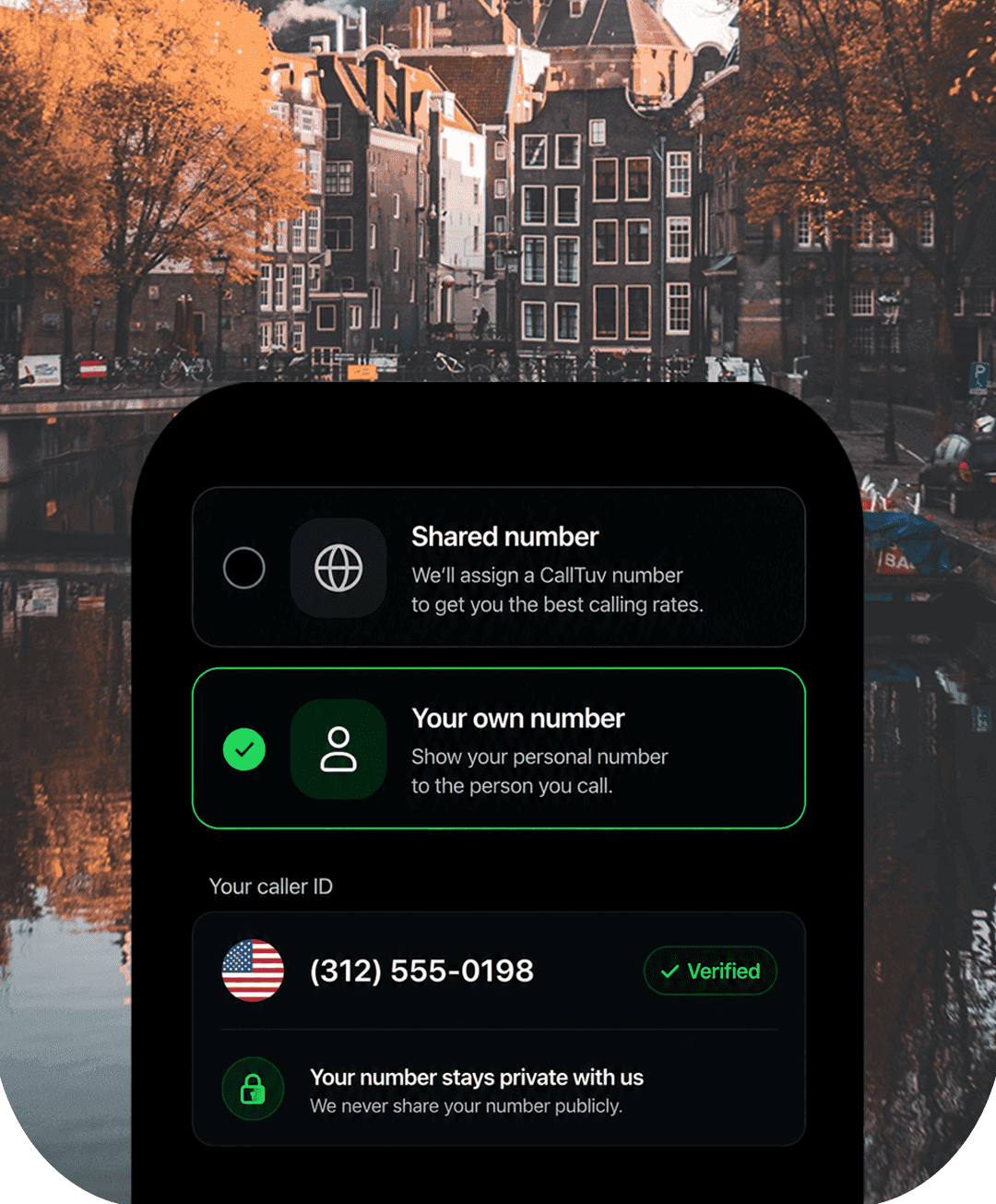
Verify a number you already own and use it as your outbound caller ID. That means people you call see a familiar number instead of a random one. It is a safer, more professional setup for personal calls, client outreach, and support follow-ups. Learn more about verified caller ID.
Next steps
Make your first laptop call in minutes
Two quick checks, then dial - no downloads, no contracts, no phone.
Test your microphone
A 30-second browser check confirms your laptop mic and input levels before the first real call.
Learn more →Check destination rates
See exact per-minute prices for the countries you call before adding credit.
Learn more →No SIM? No problem
The same browser calling works on tablets and phones without a SIM card too.
Learn more →Ready to call from your laptop?
Sign in from any browser, add credit, and reach any phone number - your laptop is the only device you need.
Laptop Calling FAQ
Frequently asked questions
Quick answers about making phone calls from a laptop or computer.