Teams prep • Device selection check

Teams Microphone Test

Test your microphone before your next Microsoft Teams meeting. Run the quick browser check first, then confirm Teams is using the same microphone.

Private browser microphone check

Test your microphone for Microsoft Teams

Run the browser mic check first, then compare it with Teams device settings or a Teams test call if you use the desktop app.

Ready to test?

Click Start test and allow microphone access when prompted.

Your audio stays on this device and is never uploaded.

Private

Your microphone stays in the browser. Nothing gets uploaded during the check.

Fast

Pick a microphone, press Start test, and know within seconds if you are ready.

Made for real calls

Use it before meetings, interviews, support calls, or any browser call where audio matters.

Traveler making clear international calls from anywhere

Crystal-clear voice qualityno matter where you are.

Stay clear on hotel Wi-Fi, shared workspaces, home broadband, or while moving between countries. CallTuv is built to keep browser calls sounding natural so every conversation stays easy to follow.

Hotel Wi-FiCoworking spacesAirport loungesHome officesMobile hotspotsAcross borders
Start callingClear browser calling from home, work, or on the road.

Call landlines and mobiles in 200+ countries.

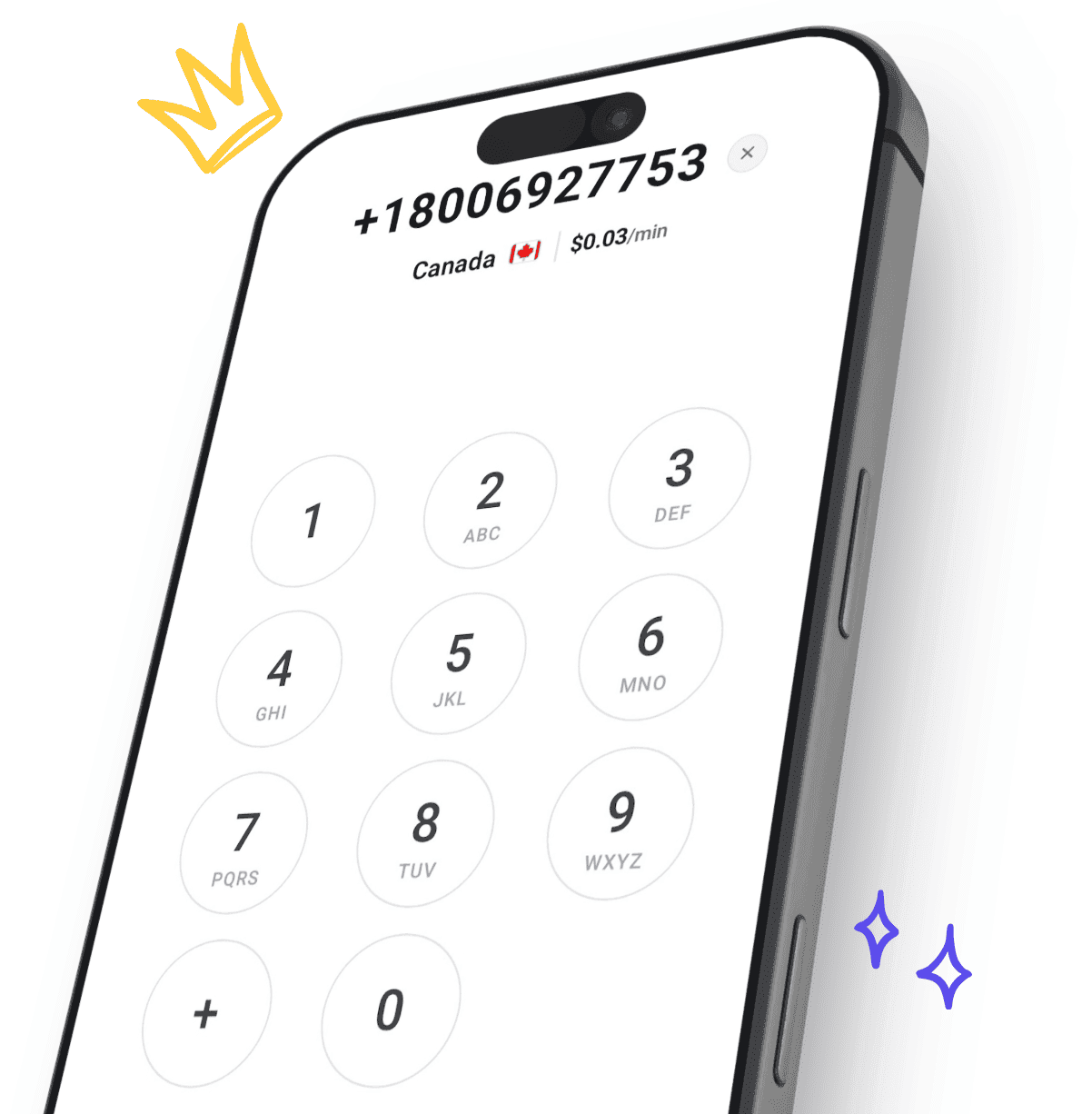
Reach customers, relatives, and teams worldwide from one browser dialer. CallTuv lets you place reliable calls to landlines and mobile numbers across 200+ destinations without switching apps, SIMs, or carriers.

200+ countriesBrowser-based callingNo app requiredGlobal reach
Start callingConnect internationally from your browser in minutes.
Phone call in progress for international calls worldwide

How to test your microphone in Microsoft Teams

Teams issues often come from the app choosing the wrong input device. A browser mic test plus a Teams settings check is usually enough to pinpoint the problem.

  1. Run the browser mic test first. Make sure your microphone works outside of Teams before you troubleshoot the app itself.
  2. Open Teams Settings and go to Devices. Review the Microphone dropdown and compare it to the device you just tested in the browser.
  3. Use Make a test call if your Teams version supports it. The desktop app can run a Teams-side check, while this browser test confirms the microphone is working before you even open the meeting.
  4. Recheck after hardware or network changes. Bluetooth headsets, docks, USB microphones, and unstable connections can all alter Teams audio behavior mid-day.


Why test your microphone before Teams meetings?

Client calls, interviews, and internal reviews start badly when audio fails in the first few seconds.

Teams can silently default to the wrong microphone when you connect or disconnect a headset.

A passing OS-level test does not always mean Teams is using the same input device.

Testing early is much less disruptive than debugging inside a live meeting while everyone waits.

Operating-system privacy settings and Teams app updates can change microphone access behind the scenes.

A quick live mic check helps you catch quiet or missing audio before someone else has to point it out.

Troubleshooting common Teams mic issues

Pro tips for better Teams audio

  • Run a test call or browser check a few minutes before important meetings, not after they start.
  • If you switch between a headset and laptop mic often, build a habit of checking the device dropdown every time you open Teams.
  • Wired headsets are usually more stable than Bluetooth for long meetings.
  • Keep your microphone distance consistent so your voice level does not drift during the meeting.
  • Quiet rooms matter as much as good hardware, especially for built-in laptop microphones.

Frequently asked questions

Pay as you go top up screen

Pay-as-you-go international callingmade simple.

Add credits to your account and use your balance for browser calls whenever you need them. Pay only for what you use, check the rate before you connect, and keep your credit ready for the next important call.

No subscriptionTop up from $5Credits never expire
Learn More
Save up to 90%

See how much you'll save

Compare the cost of a 1-hour call to popular destinations. CallTuv saves you serious money.

🇮🇳

India

Save 70%
CallTuv60 minutes
$6.00
Traditional Carrier60 minutes
$20.00
🇬🇧

United Kingdom

Save 84%
CallTuv60 minutes
$2.40
Traditional Carrier60 minutes
$15.00
🇲🇽

Mexico

Save 88%
CallTuv60 minutes
$2.40
Traditional Carrier60 minutes
$20.00
🇩🇪

Germany

Save 81%
CallTuv60 minutes
$3.00
Traditional Carrier60 minutes
$16.00
🇺🇸

United States

Save 85%
CallTuv60 minutes
$1.80
Traditional Carrier60 minutes
$12.00
🇮🇹

Italy

Save 85%
CallTuv60 minutes
$2.40
Traditional Carrier60 minutes
$16.00
🇳🇿

New Zealand

Save 81%
CallTuv60 minutes
$4.20
Traditional Carrier60 minutes
$22.00
Best Value

CallTuv

  • Pay per minute
  • No subscriptions
  • Credits never expire
  • No app required
  • HD quality

Traditional Carriers

  • Expensive per-minute rates
  • Hidden connection fees
  • Complex billing
  • Requires phone plan
  • Reliable quality

Ready to use your microphone on a real browser call?

After your audio check, CallTuv lets you place international calls directly from the browser with pay-as-you-go pricing and no monthly contract.

No monthly feesPay as you goClear callsCall from your browser

How can we help?

If you have any questions, our team is here to assist you.

Ready to dial in?

Make cheap, crystal-clear international phone calls in minutes.

Create your account, add credits, and place your first call straight from your browser. No setup fees, no subscriptions.

  • Unlimited browser calling
  • Crystal clear HD audio
  • Free call recordings
  • Global coverage in 200+ countries
  • Pay-as-you-go credits
  • Share balance with members
  • No downloads required
  • Secure & private
CallTuv customer staying close with international browser calls